

Quote ads
A quote ad is how a builder sells a big-ticket item, such as a grooming van, a grooming trailer or a mobile vet unit, on United Pet Club. Buyers can’t add it to a cart. They ask you for a quote, you send one with the total, a deposit and your terms, and the buyer accepts it and pays the deposit by card through UPC. The rest of the price is paid to you directly.
This page covers the ad itself. To answer buyers and close a deal, see Quote requests. To see the buyer’s side, see Your quotes.
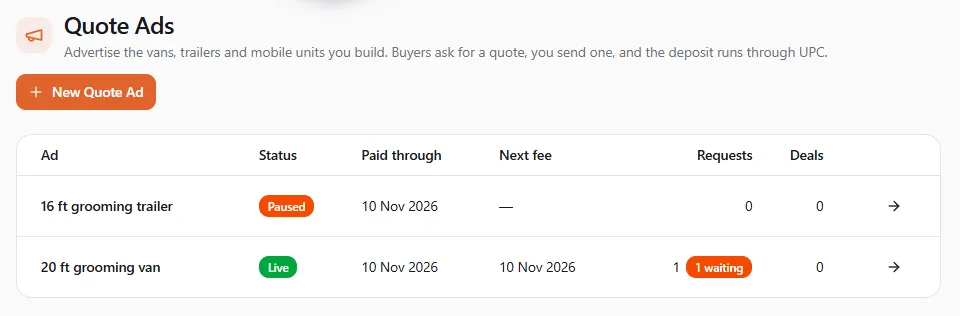
Commerce → Quote Ads → My Quote Ads in the Dashboard (/dashboard/commerce/quote-ads). The page
lists your ads and has a New Quote Ad button at the top. Commerce → Quote Ads → New Quote Ad
(/dashboard/commerce/quote-ads/new) starts a new one.
The Quote Ads menu opens for Manufacturer businesses. Other profiles see a preview with the note Quote Ads are for builders.
Who can publish a quote ad
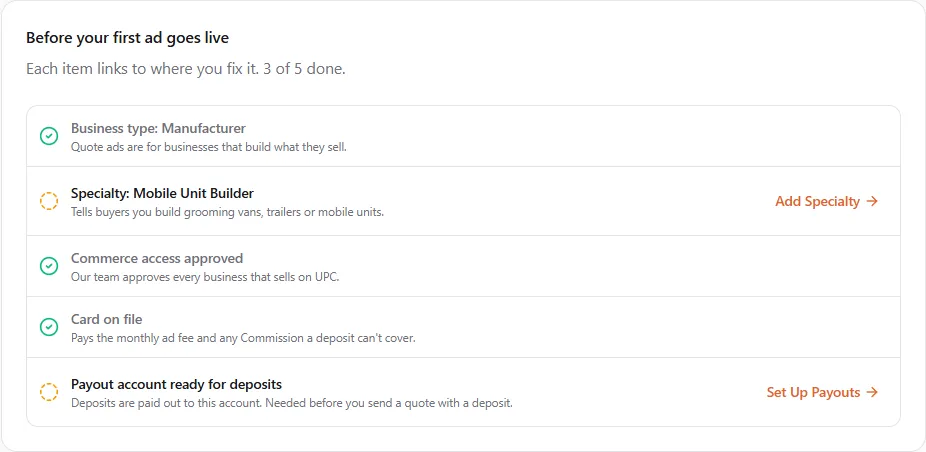
Section titled “Who can publish a quote ad”Until everything is in place, the page opens with the checklist Before your first ad goes live. Each line shows Done, Needed or Not checked, and links to where you fix it.
| Checklist item | What it means | Where you fix it |
|---|---|---|
| Business type: Manufacturer | Quote ads are for businesses that build what they sell. A personal profile can’t publish one. | Set Business Type: My Business → Business type (see Business type) |
| Specialty: Mobile Unit Builder | Tells buyers you build grooming vans, trailers or mobile units. | Add Specialty: the Specialties card on the same page (see Specialties) |
| Commerce access approved | Our team approves every business that sells on UPC. | Apply to Sell (see Start selling) |
| Card on file | Pays the monthly ad fee and any Commission a deposit can’t cover. You need it even when your ad fee is waived. | Add a Card: Finances → Billing (see Why we ask for a card) |
| Payout account ready for deposits | Deposits are paid out to this account. You can publish without it, but set it up before you send a quote with a deposit. | Set Up Payouts: Finances → Receive Payments (see Receive payments) |
When the first four are done, the checklist says You can publish quote ads and moves to the bottom of the page. If a line says Not checked, we couldn’t check it right then: try again in a few minutes.
Create a quote ad
Section titled “Create a quote ad”An ad shows one of your products: its photos and description come from the product. Create the product first if you haven’t.
- Open Commerce → Quote Ads and select New Quote Ad.
- Product. Choose the product to advertise. Products in the Grooming Vans & Mobile Units
category are listed first, and they are the ones buyers find on the store’s vans and trailers page.
- No product yet? Select Add a Product. The product form opens with that category already picked. Add the van, trailer or unit you build, publish it, then come back.
- A product that isn’t published shows Not published. Publish it before you advertise it.
- Each product can have one quote ad. If it already has one, Open the ad takes you to it.
- You can choose a product in another category, but buyers browsing mobile units won’t see it there.
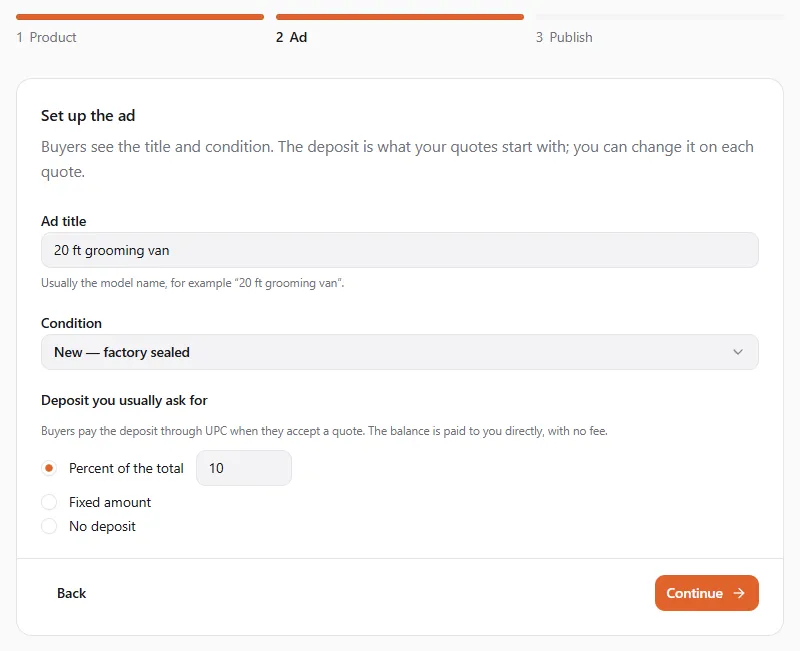
- Ad. Set up what buyers see and what your quotes start with:
- Ad title: usually the model name, for example 20 ft grooming van.
- Condition: for example New — factory sealed, Used — excellent or Not applicable.
- Deposit you usually ask for: Percent of the total, Fixed amount or No deposit. Every quote you send starts with this deposit, and you can change it on each quote.
- Publish. Check the details and select Publish Ad. Nothing is billed yet: the next screen shows the fee first.
The publish dialog
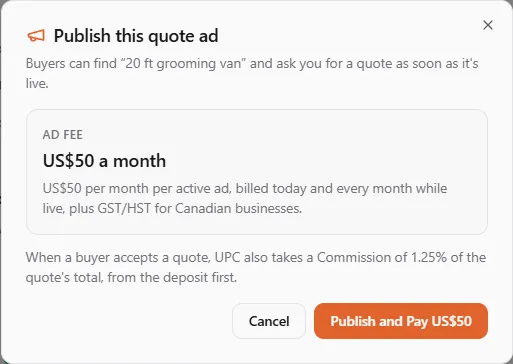
Section titled “The publish dialog”Publish this quote ad says what publishing costs before anything is charged:
- US$50 a month: US$50 per month per active ad, billed today and every month while live, plus GST/HST for Canadian businesses. The button reads Publish and Pay US$50.
- Fee waived by UPC, when we have waived the fee for your business. Nothing is billed while the waiver lasts, and the button reads Publish Ad.
- Paid until a date, when you publish an ended ad again inside a month you’ve already paid. Nothing is billed until that date, and the button reads Publish Ad.
Under the fee, the dialog also reminds you of the Commission: when a buyer accepts a quote, UPC takes 1.25% of the quote’s total, from the deposit first. See Quote requests.
The ad goes live as soon as you confirm. Buyers can find it on the store and ask you for a quote straight away. The dialog closes only with its buttons.
The monthly fee
Section titled “The monthly fee”Each live quote ad costs US$50 a month. It’s a flat fee per ad, in US dollars wherever you are.
- Billed in advance. The first month is billed the day the ad goes live. Each next month is billed on the same day of the month (the ad’s anniversary) while the ad is live. On the 31st, a short month bills on its last day.
- No part months. There’s no proration. Ending an ad early doesn’t refund the month you’ve paid.
- Pausing is free. A paused ad isn’t billed. When you resume it inside the month you’ve paid, nothing is billed. If you resume it after that month has ended, a new month is billed that day, and that day becomes the ad’s new anniversary.
- GST/HST is added for businesses in Canada, by province. See Taxes on United Pet Club fees.
- How it’s paid. The fee goes on your platform fees, like Sales & Marketing usage, and is paid the same way: from platform credit, your prepaid balance or your card on file. See Credit limit and prepaid balance. On your statement it reads Quote ad fee.
- One fee per ad. Two live ads cost US$100 a month.
When UPC waives the fee
Section titled “When UPC waives the fee”UPC can waive the monthly fee for a business, for example as a promotion or for a partner. While a waiver lasts, each ad shows Fee waived by UPC, the Next fee column reads Waived, and the months are listed as Waived on the ad’s page. A waiver covers the months that start while it lasts. Months already billed before it started are not refunded. When the waiver ends, the next month is billed as usual.
A waiver covers the ad fee only. The Commission on your deals is still charged.
Your ads list
Section titled “Your ads list”| Column | What it shows |
|---|---|
| Ad | The ad title. Select it to open the ad. |
| Status | Where the ad stands (see Statuses), plus Fee waived by UPC when it applies. |
| Paid through | The last day of the month you’ve paid. |
| Next fee | The day the next US$50 is billed, or Waived. |
| Requests | How many buyers asked for a quote on this ad. 3 waiting means three are waiting for your quote. |
| Deals | Accepted quotes: the buyer is paying the deposit, or the deal is confirmed. |
One ad’s page
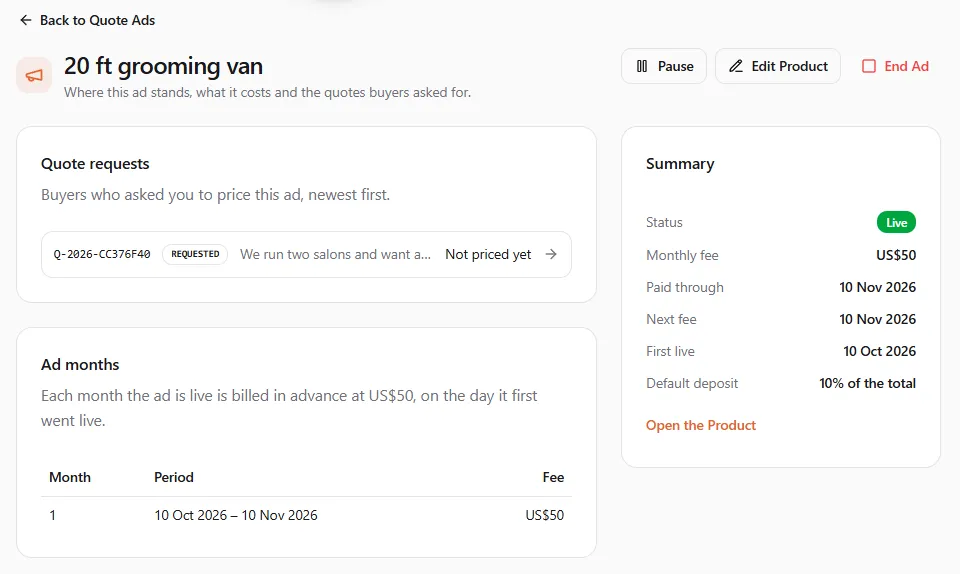
Section titled “One ad’s page”Open an ad from the list (/dashboard/commerce/quote-ads/<ad>). The page shows:
- Summary: Status, Monthly fee, Paid through, Next fee, First live, Default deposit (for example 10% of the total) and Open the Product.
- Quote requests: buyers who asked you to price this ad, newest first. Each opens the quote in your quotes inbox.
- Ad months: every month the ad was live, its period and its fee (Waived for a waived month).
- The buttons for what you can do now, at the top.
Pause, resume or end an ad
Section titled “Pause, resume or end an ad”| Button | When you see it | What happens |
|---|---|---|
| Pause | The ad is live | Buyers no longer see it and can’t ask for a quote, and you can’t send or revise quotes on it until you resume it. The month you’ve paid keeps running. |
| Resume | The ad is paused | The checklist is checked again, then buyers see the ad again. A new month is billed only if the paid one has ended. |
| End Ad | Any time, until UPC removes the ad | Asks first: Buyers stop seeing it at once. The month you’ve paid isn’t refunded, and publishing it again inside that month costs nothing. Select End Ad to confirm or Keep Ad to cancel. |
| Publish Again | The ad has ended | Opens the publish dialog. Free until the paid month ends; after that, a new month is billed that day. |
| Edit Product | Until UPC removes the ad | Opens the product, where the photos and description live. Changes show on the ad. |
If you unpublish the product, the ad ends at its next renewal and nothing more is billed.
Statuses
Section titled “Statuses”| Status | What it means | What to do |
|---|---|---|
| Draft | Set up but not published yet. | Run New Quote Ad again with the same product and publish it. |
| Live | Buyers can see the ad and ask for a quote. | Nothing. |
| Paused | You paused it. Buyers don’t see it. Not billed while paused. | Resume when you’re ready. |
| Suspended: fee unpaid | We couldn’t charge the monthly fee. The ad is hidden. | Pay your platform fees (below). |
| Suspended by UPC | Our team hid the ad. The page shows the reason when there is one. | Contact support. |
| Ended | You ended it. Buyers don’t see it. | Publish Again if you want it back. |
| Removed by UPC | Our team removed the ad for good. We email you the reason. | Contact support to find out more. |
When the fee can’t be charged
Section titled “When the fee can’t be charged”The monthly fee is paid like your other platform fees. If your card is declined, we try it again 1, 3 and 7 days later (see When a charge doesn’t go through). Your ads stay live during those retries, and an ad whose month comes up meanwhile renews as usual. Only if every try fails, and your paid services are paused, do your live ads become Suspended: fee unpaid. An ad is also suspended on its renewal day if there’s no card on file, or if your account has to run on prepaid balance and the balance can’t cover it.
The ad’s page then says Hidden: the ad fee wasn’t paid with a Pay Platform Fees link, and we email you. To get the ad back:
- Select Pay Platform Fees, or open Finances → Billing (
/dashboard/finances/billing). - Pay what you owe with Pay … now on the Platform fees card, or replace your card first.
- The ad comes back on its own once the fees are paid, usually within the hour and at the latest the next day. If our team puts your account back on a normal limit, it comes back straight away. If the paid month has ended, a new month is billed that day.
If something went wrong
Section titled “If something went wrong”- The New Quote Ad wizard says “Finish the checklist to publish.” One of the required checklist items is still Needed. Fix it from the link on that line, then come back.
- I don’t see Quote Ads in the menu. Switch to your business profile. If the pages show a preview with Quote Ads are for builders, the business type isn’t Manufacturer yet.
- “The ad wasn’t published.” Check the checklist above the list: a card on file, commerce access or the specialty may be missing. Then try again.
- I can’t pick Mobile Unit Builder. Save Manufacturer as the business type first. The specialties of a type appear only after the type is saved. Setting up a new business? Pick Manufacturer on the Specializations step and tick Mobile Unit Builder at the top of What services do you offer?